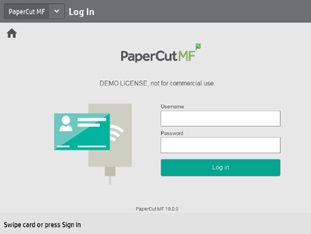
- Scan your student ID or enter your @educbe.ab username and password to sign in.
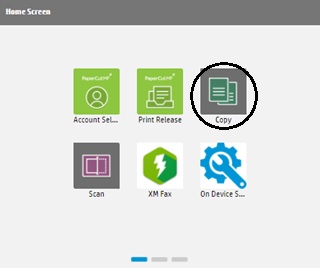
- On the printer, please select Copy
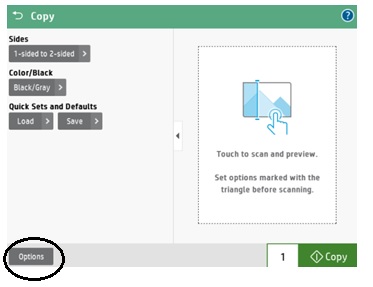
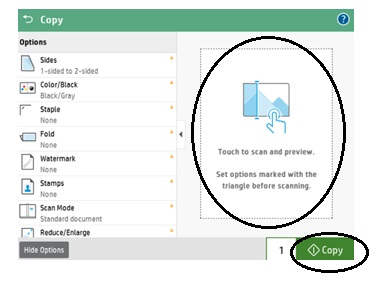
- This screen will appear. Confirm your copy preferences or click the Options button for more copy settings.
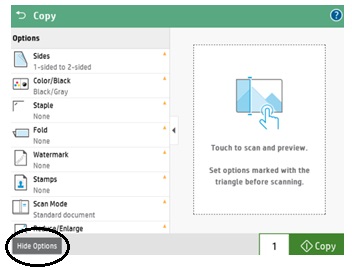
- Once you have selected your preferences, click the Hide Options button to close the panel.
- To preview your document, touch the screen to scan and preview. Click the Copy button.
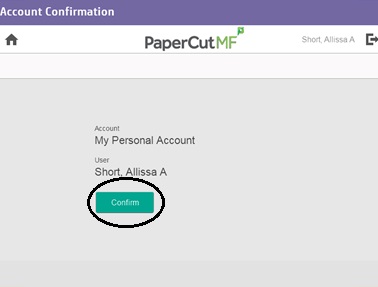
- Once you click Copy, this screen will appear to confirm your user account. Click Confirm. If there is a page quota set for the user, it will appear here.
- Select the Sign Out button to log out.
Last modified: 2026-06-03 20:06:29.159546 +0000 UTC