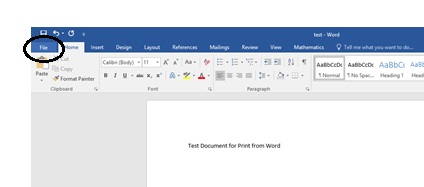
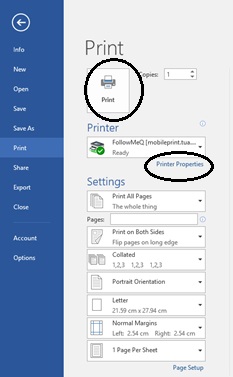
- To print a document, open the document you want to print, select File, Print.
- FollowMeQ should be the default printer. If not, select it from the drop-down menu.
- Once you have customized your print preferences, click print to send the job to the print queue. The default print setting is set to black & white. To print in color, click on ‘Printer Properties’ to customize the settings.
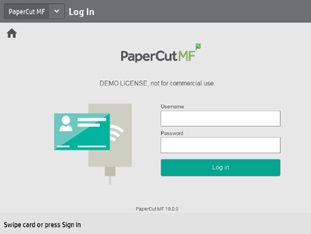
- When you are ready to release your print job, go to any printer and scan your student ID or enter your @educbe.ab username and password to sign in.
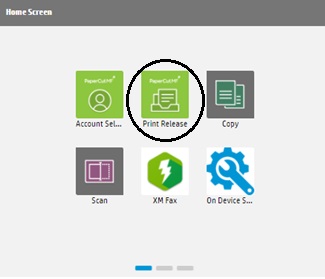
- On the printer, please select Print Release.
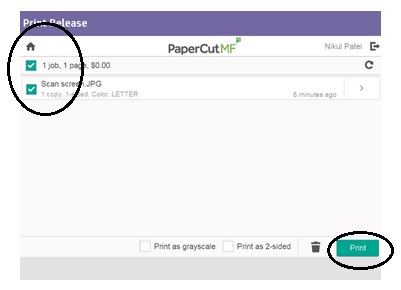
- Once you click Print Release, the following screen will appear. Select the job you want to print and click the print button at the bottom of the screen.
- Select the Sign Out button to log out.
Last modified: 2026-04-28 17:22:16.403753 +0000 UTC