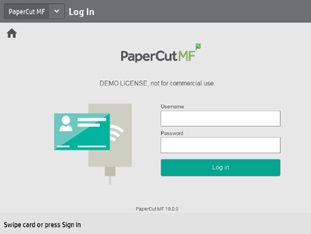
1. Scan your student ID or enter your @educbe.ab username and password to sign in.
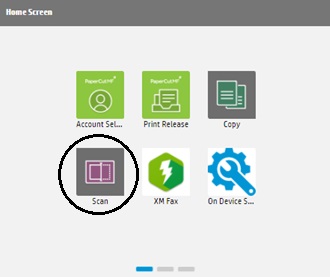
2. On the printer, please select Scan
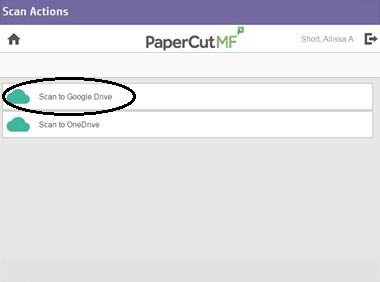
3. From the following screen select ‘Scan to Google Drive’.
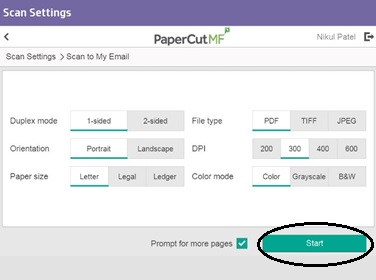
4. From the following screen, you can click ‘Options’ to select your scanning preferences.
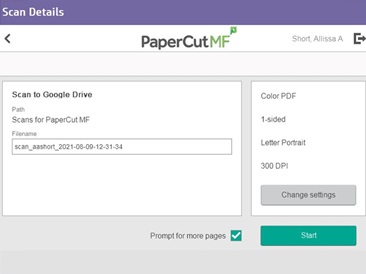
5. Once you have customized your scan preferences, click ‘Start’ to send the scan.
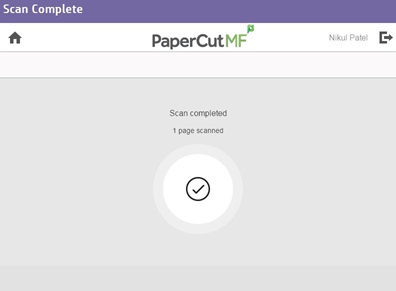
6. Once the scan is complete, this screen will appear.
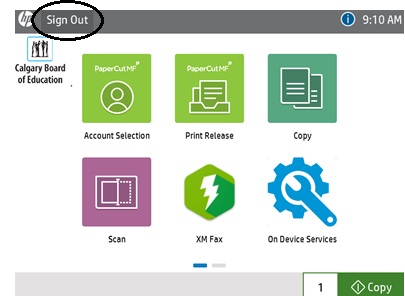
7. Select the Sign Out button to log out.
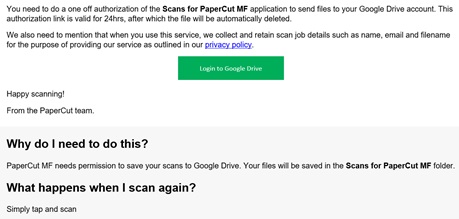
8. Once the scan is complete, you will receive an email to authorize your account. Sign in to your Google Drive. This is only required the first time you scan to Google Drive.
Last modified: 2026-04-28 17:34:31.497854 +0000 UTC